What do I need?
- Chrome or Edge on a computer. Firefox works too, with one extra prompt and a few quirks (below). Safari has no Web MIDI, so on a Mac use Chrome or Edge.
- A USB data cable from the module’s USB port to the computer. Charge-only USB-C cables power the module but carry no data.
- Nothing else. Roland, Alesis and Yamaha modules are class compliant for MIDI: no driver, no app.
How do I connect my kit, step by step?
- Plug the kit in and switch it on. Connect a USB data cable from the module’s USB port (USB COMPUTER on Roland, USB TO HOST on Yamaha, USB on Alesis) to the computer, then switch the module on. Do it before you open the browser if you use Firefox.
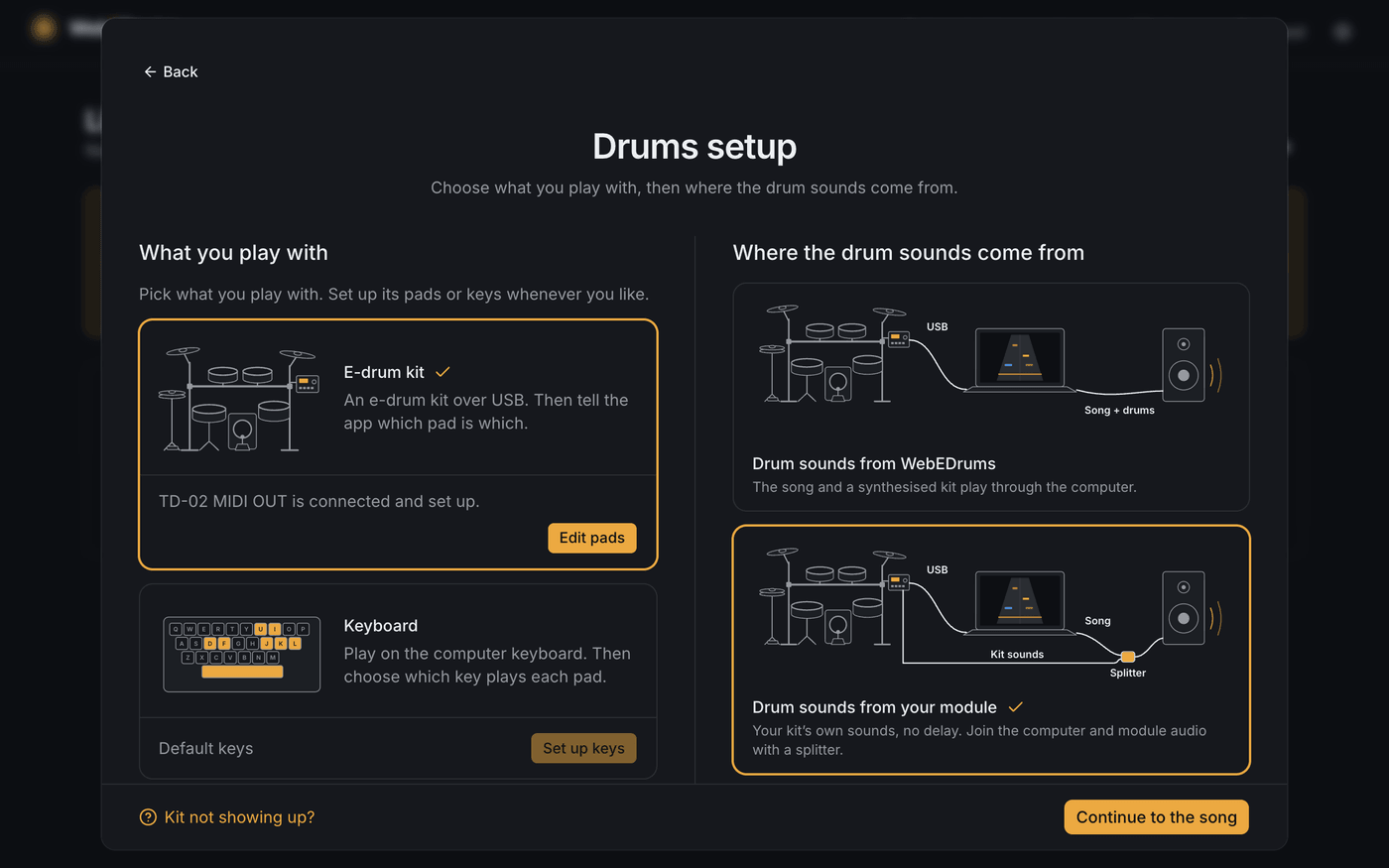
- Open Drums setup. Open webedrums.com/app/ in Chrome or Edge and click Drums setup at the top right. It shows what you play with on the left and where the drum sounds come from on the right.

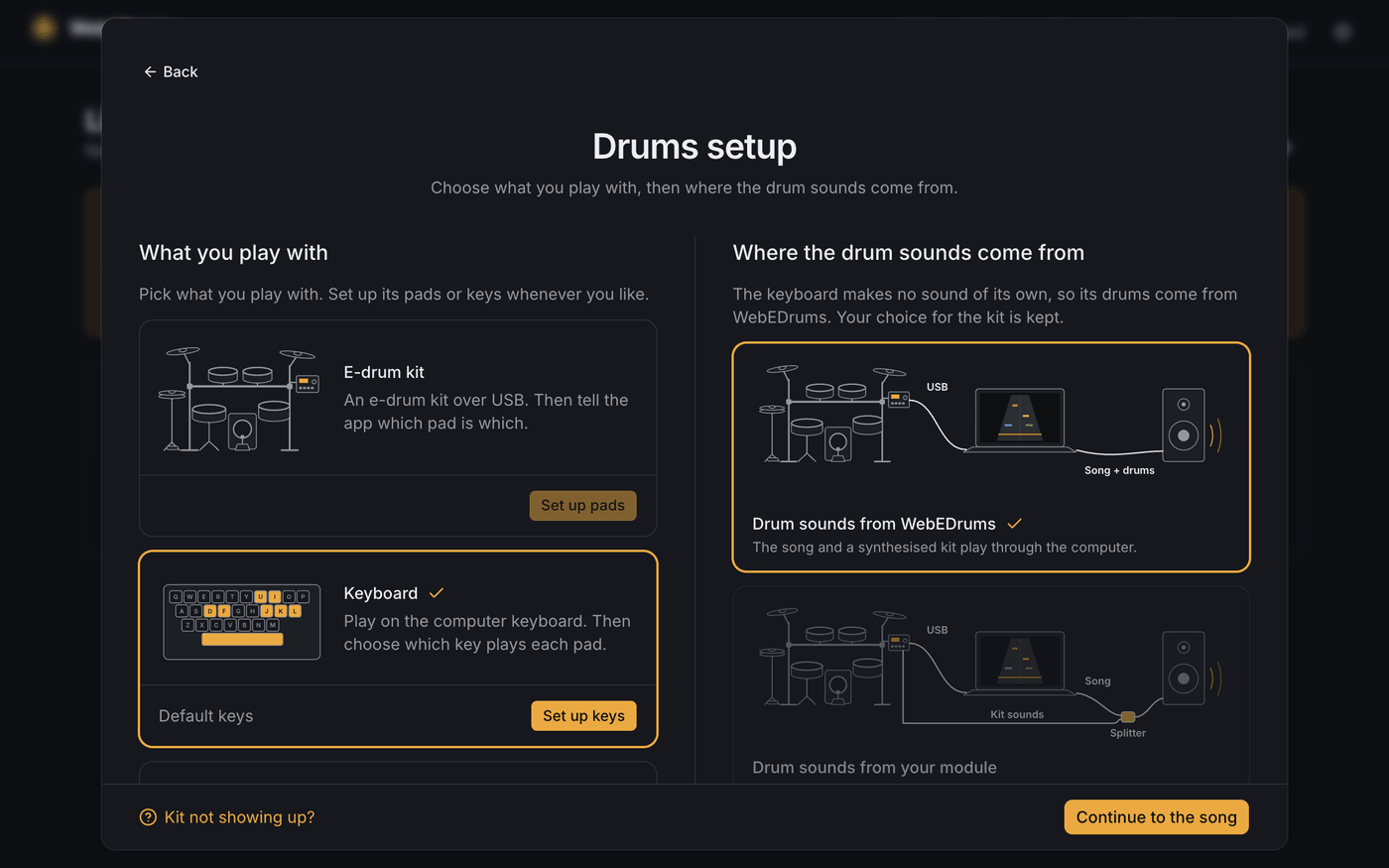
- Click the E-drum kit card and allow MIDI. Click the E-drum kit card. Chrome asks whether the site may control and reprogram your MIDI devices; click Allow. While it waits, the card shows Connecting to your kit.
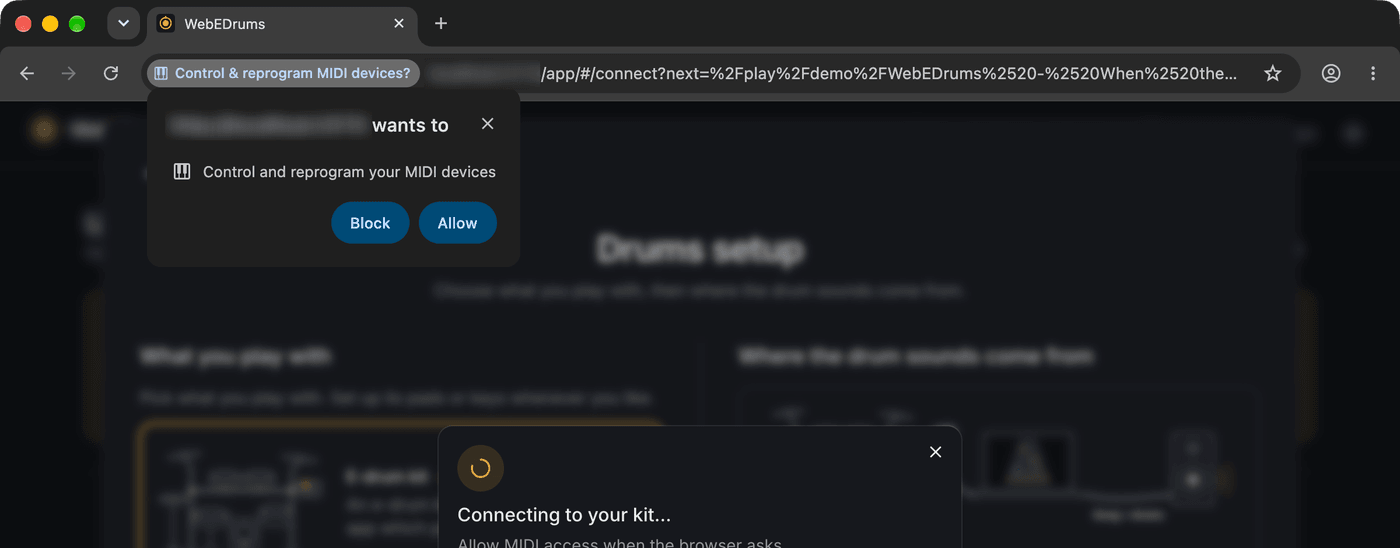
Chrome’s prompt. Its wording covers all MIDI access; WebEDrums only reads the notes your pads send and never sends anything to the module. - Check that the kit is found. A few seconds later the card names your module, for example “TD-02 MIDI OUT is connected”. If it says No kit found instead, see the checklist further down.
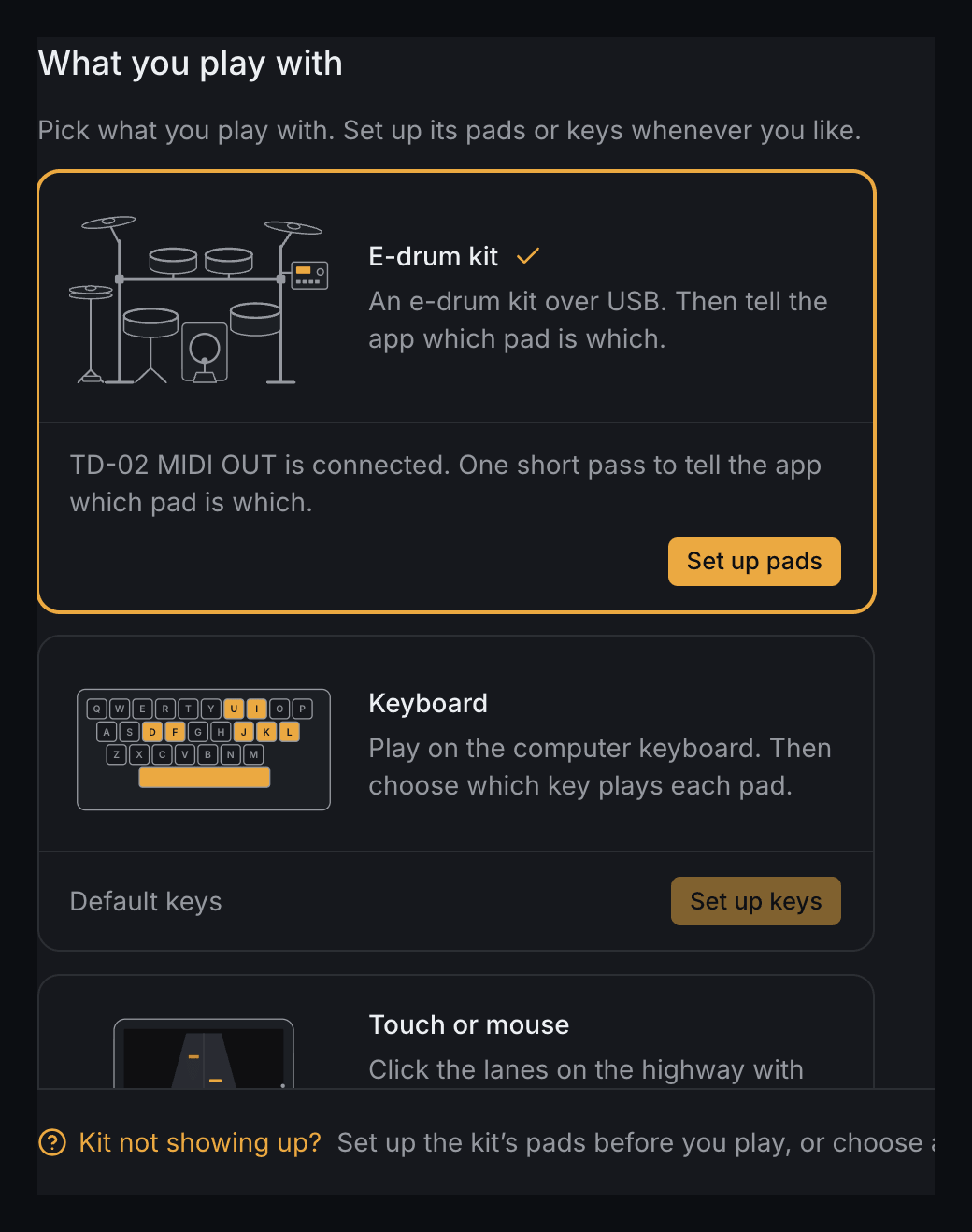
- Choose where the drum sounds come from. Pick Drum sounds from your module to keep your kit’s own sounds with no delay, or Drum sounds from WebEDrums when the module is muted or has no output.
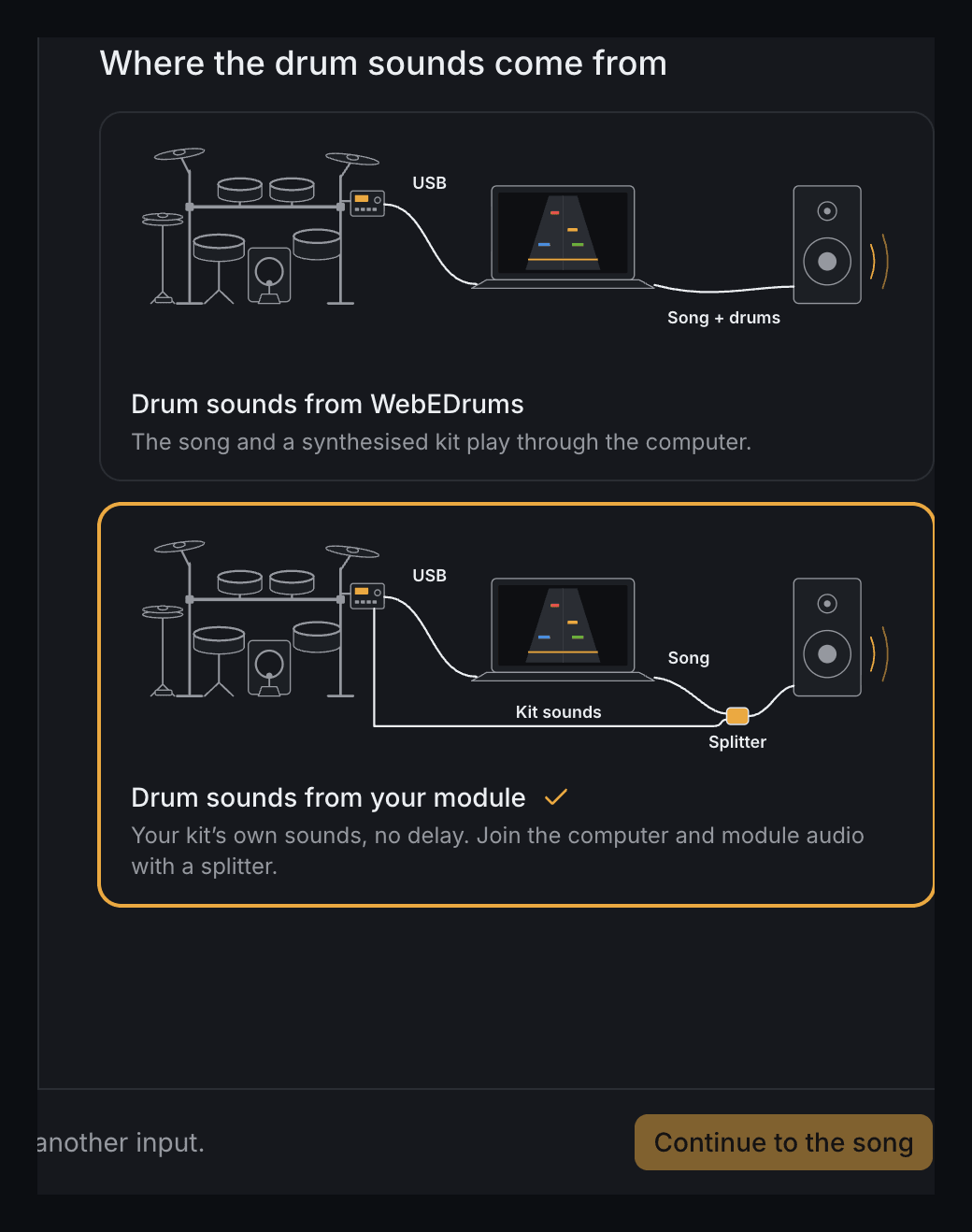
With the keyboard or touch the module card is disabled: they make no sound of their own. - Set up the pads. Click Set up pads. For a Roland, Alesis or Yamaha module, Use Roland defaults instead (or Alesis, or Yamaha) fills in the usual notes in one click; otherwise Start asks you to hit each pad in turn and records every zone it hears. Review the list and click Save mapping.
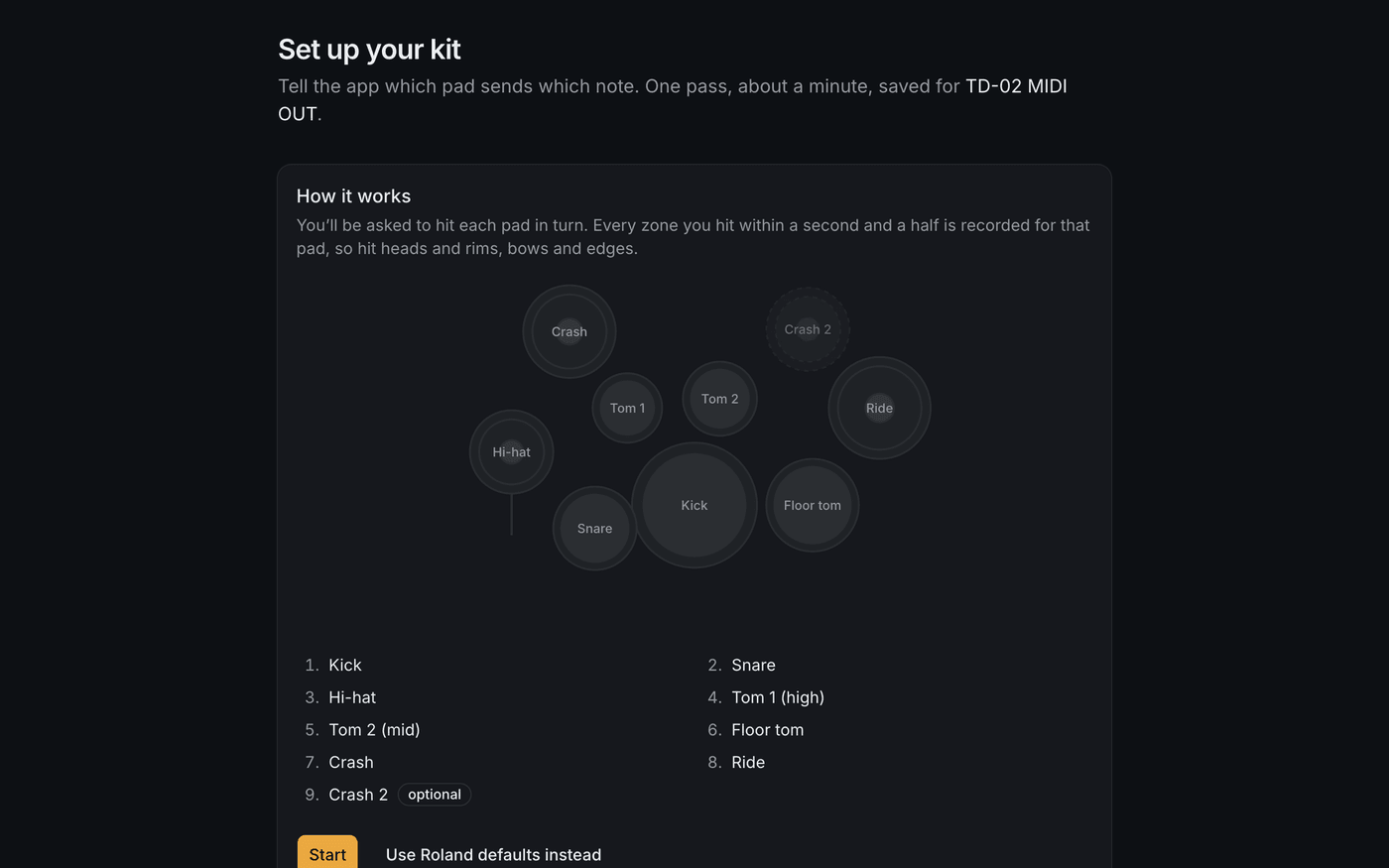
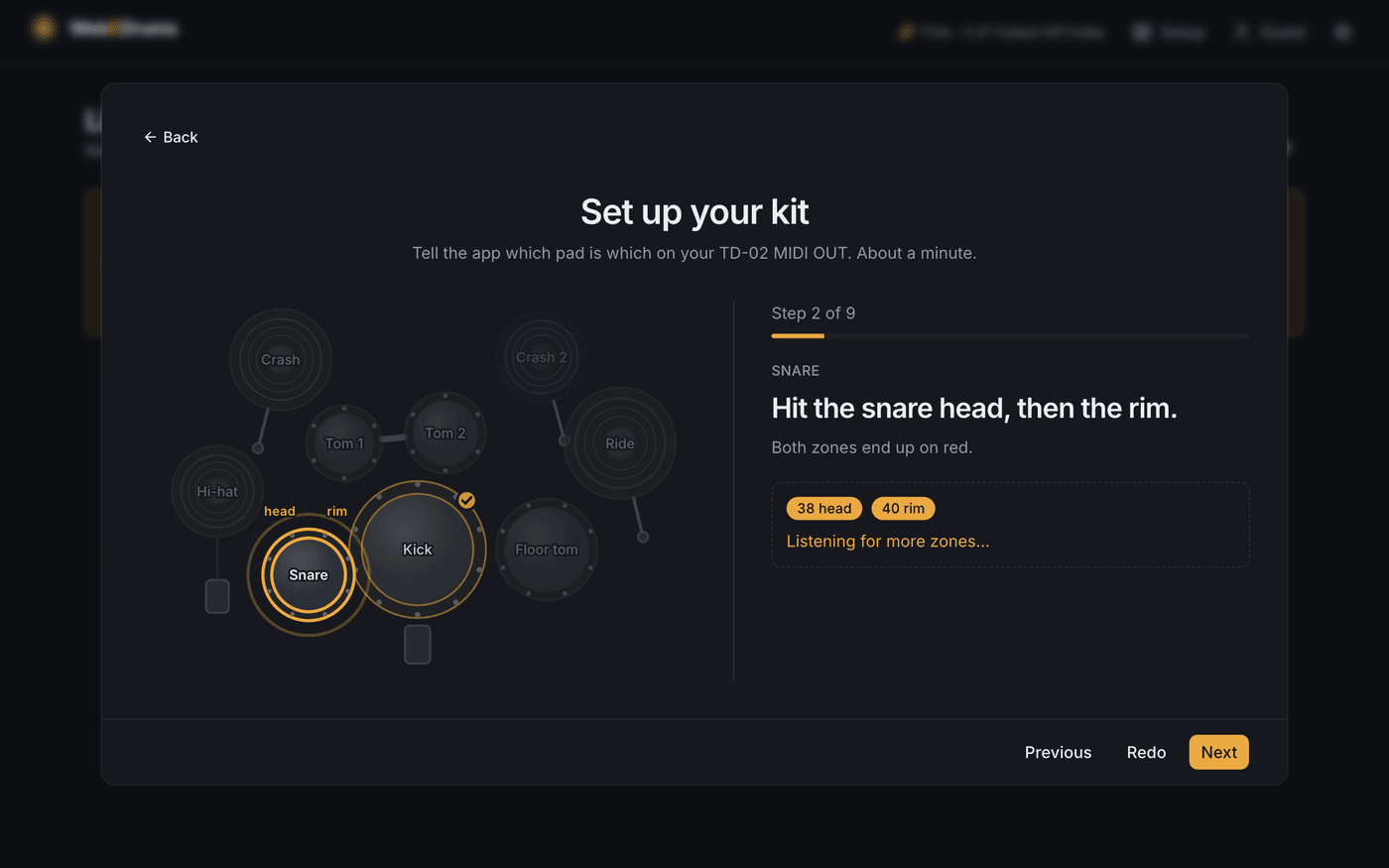
Each zone you hit within a second and a half is recorded for that pad. 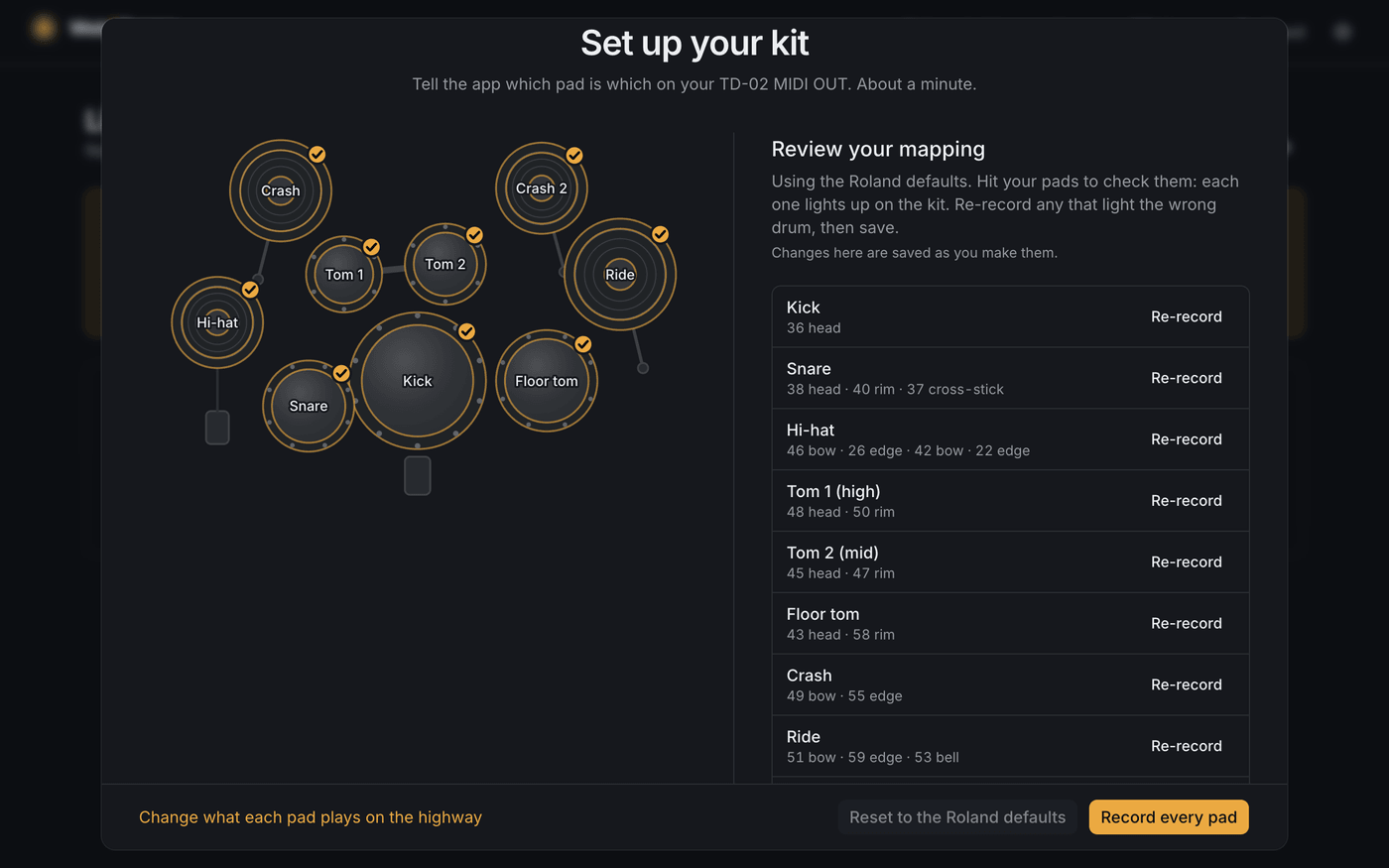
- Play. Back on Drums setup the card says the kit is connected and set up. Click Continue to the song, or Done, and play.


Chrome and Edge
I clicked Block. How do I allow MIDI again?
Chrome and Edge remember a Block, and the kit card says so:

- Click the icon left of the address bar, open the site settings and set MIDI to Allow.
- Or, in Chrome, open
chrome://settings/content/midiDevices, find webedrums.com under Not allowed and remove it with the bin icon. Edge has the same list in its site permissions settings. - Reload the page and click the E-drum kit card again. Chrome asks again.

If the prompt still does not come back, quit the browser completely (not just the tab), open it again and retry.
I clicked the kit, but no prompt appeared
A prompt closed by clicking elsewhere on the page stays waiting behind a small MIDI icon in the address bar. Click the E-drum kit card again: each click asks again. After a few seconds without an answer the card points you to the address bar.

Why does Chrome say “control and reprogram your MIDI devices”?
Since Chrome 124 every site needs permission for any MIDI access, and the prompt uses that wording for all of it. WebEDrums asks for plain MIDI access, without system-exclusive messages, and only reads the notes your pads send. It never sends anything to the module, so it cannot change its settings.
Firefox
Firefox asks to install an add-on
On a secure site Firefox grants MIDI through a small site-permission add-on, made by Firefox for this site only. Accept it: without it, MIDI access is refused. It appears under Add-ons and themes, in Site permissions.
Firefox stopped asking, and nothing shows by the address bar
After Never Allow on that prompt, Firefox refuses every request without asking again, and the panel by the address bar lists no MIDI entry to undo it. The kit card says MIDI is blocked:

- Open Page Info: Cmd+I on a Mac, Ctrl+I on Windows and Linux.
- Go to Permissions and set Access MIDI Devices to Allow.
- Reload the page.
I plugged the kit in after opening Firefox and it is not found
Firefox reads its list of MIDI devices once, when it starts, and never updates it. A kit plugged in or switched on later stays invisible until you quit Firefox completely (Cmd+Q on a Mac) and open it again. Reloading the page or opening a new tab is not enough.

I unplugged the kit, but Firefox still shows it as connected
Firefox does not report an unplugged kit: the kit stays listed and the app cannot tell. If the pads stop responding, check the cable and plug it back in; the hits come through again.
Firefox does not remember my songs folder
Firefox has no folder picker that a site can keep, so you pick the songs folder again on each visit. Chrome and Edge remember it.
Safari, iPhone and iPad
Safari has no Web MIDI, and browsers on iPhone and iPad are built on Safari’s engine, so a kit cannot connect there. On a Mac, open WebEDrums in Chrome or Edge. On an iPhone or iPad you can still play by tapping the lanes on the highway.
The kit is not found, in any browser
After a click on the E-drum kit card WebEDrums looks for a kit for a few seconds, then goes back to the keyboard and shows what to check. In Chrome and Edge a kit plugged in afterwards is picked up by itself.

- The cable. Use the module’s USB port with a data cable; a charge-only cable is the most common cause.
- The module’s USB mode. Some Alesis and Yamaha modules have a USB mode setting: set it to MIDI.
- The port. Try another USB port, and avoid unpowered hubs.
- Windows. Only one program can open a MIDI port there: close your recording software, the maker’s editor app, or another tab that has the kit open.
- Bluetooth. Web MIDI does not read Bluetooth MIDI; use the cable.
Can I play without a kit?
Yes. On Drums setup, choose Keyboard to play with the computer keys (and pick your own keys with Set up keys), or Touch or mouse to click or tap the lanes on the highway. WebEDrums plays the drum sounds for both.
Sources
Checked on October 22, 2026. If one of these pages has changed and this guide has not caught up, tell us on the contact page.